Business Listings · October 11, 2026
What to Do When Google Says Your Business Is Permanently Closed
A practical guide to reopening an active Google Business Profile, correcting supporting information, and preventing customer confusion.
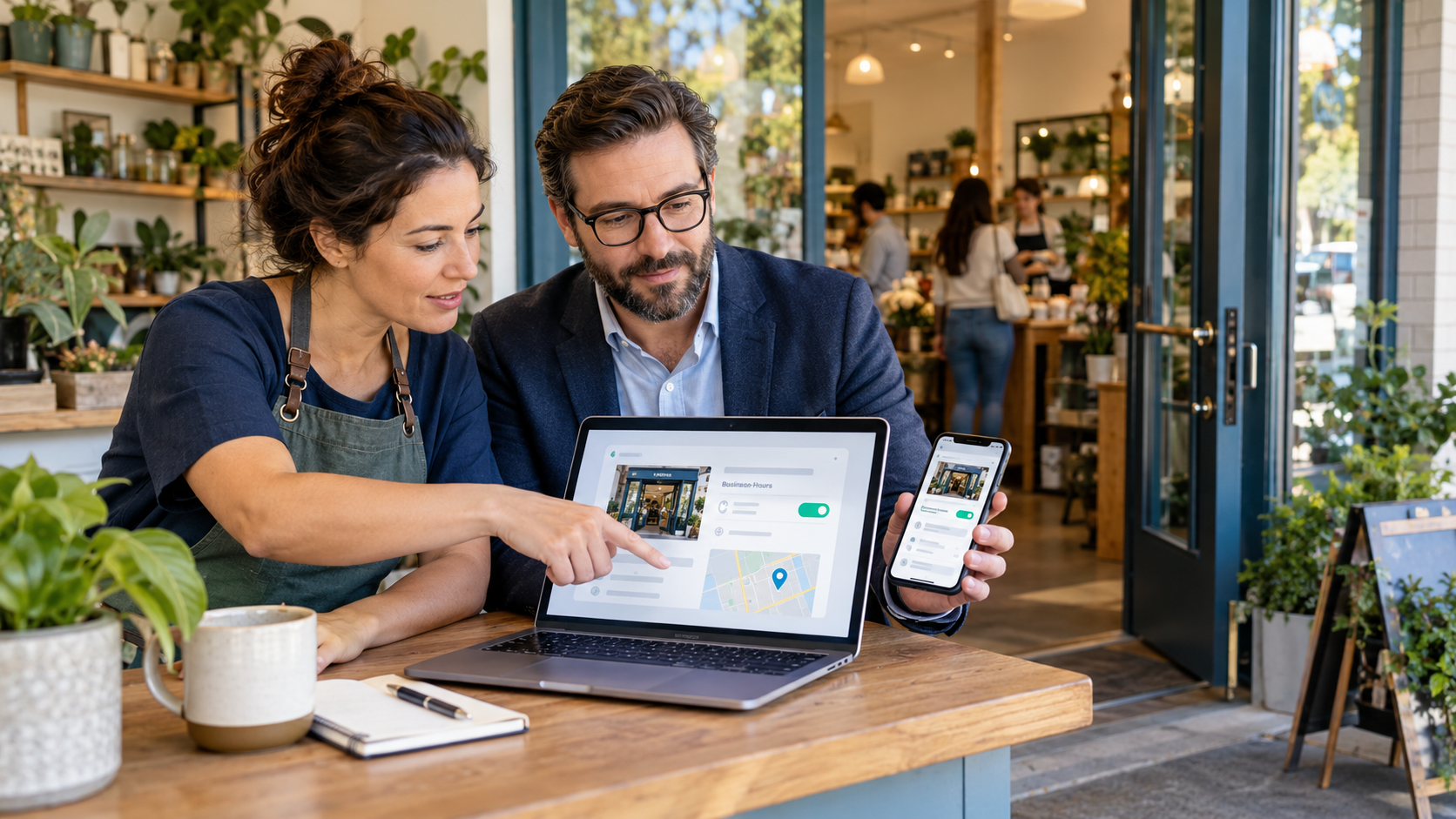
If Google incorrectly labels your active business as permanently closed, first confirm that you are viewing the correct location and that you still control its verified Business Profile. In the profile editor, open the Hours section and select Open with main hours, or Open with no main hours when appropriate, then save accurate details. Preserve screenshots and review recent Google updates, ownership, address, website, and hours. If the change is rejected or the closed status returns, contact Google Business Profile support with focused evidence. Do not create a duplicate profile or reopen an old location that truly moved.
A permanently closed label can discourage calls, directions, visits, and orders while a location operates normally. The label can remain visible in Google Search and Maps, so treat it as an urgent accuracy problem. It is not proof that a competitor acted against the business. Google says profile information may be updated from sources including user reports and licensed content.
A closed label differs from a suspension. An owner may still manage a profile publicly marked closed, while a suspended or disabled profile has separate restrictions and an appeal process. Identify the status first. A replacement listing can split reviews, confuse customers, and complicate the correction.
The correct action depends on the real business. Google says not to reopen a profile marked permanently closed because of a location or name change. Instead, add and verify the new profile and contact support if reviews should be moved. Reopening is for the identity and location represented by the existing profile.
A practical step-by-step approach
01Confirm the exact profile and public label
Search the name, address, and phone in Google Search and Maps. Save the profile URL, map link, core details, reviews, and dated screenshots of the closed label. Check more than one device or a signed-out view. Make sure the result is not an old location, duplicate, similarly named business, or profile controlled by another organization.
02Check access, verification, and profile status
Sign in with the account linked to the Business Profile. Confirm the business appears in your managed profiles and that you have owner or manager access. Check verification and policy notices. If suspended, use Google's appeals process instead of a simple hours edit, and do not create a new profile while an appeal is pending.
03Reopen a location that is genuinely operating
Google directs managers to open the profile, choose Edit profile, select Hours, and edit the Hours section. Choose Open with main hours and enter the real schedule. If hours should not display, choose Open with no main hours and save. For multiple locations, authorized managers can use Business Profile Manager, select locations, choose Actions, and mark them open.
04Do not reopen the wrong historical profile
If the company moved, changed identity, or replaced the location, determine whether Google requires a new profile. Google says not to reopen a business marked closed as part of a location or name change. Add and verify the accurate profile, preserve the old URL, and contact support about eligible review movement. Do not convert an old profile into a different business to keep its reviews.
05Review Google updates and supporting facts
Google may show an update notification in the profile editor and can use information from public sources. Review the name, address, map pin, phone, website, category, and hours. Correct material conflicts on the official website and major customer-facing listings. Display current hours and contact details clearly. Do not add promotional keywords to the business name or alter facts just to force a result.
06Prepare evidence if the edit does not stay
Keep before-and-after screenshots, edit confirmation, profile ID, support case numbers, and the time the label returned. Useful evidence may include a current storefront photo with permanent signage, the official website showing the location and hours, a business license, registration, lease, or utility bill when Google requests it. Redact unrelated personal or financial information and submit documents only through an official Google channel.
07Contact support with one focused case
If the reopen option is unavailable, the correction is rejected, or the profile returns to closed, use Google Business Profile Help. State that the profile represents an active eligible business, provide its URL or ID, explain whether the location closed or moved, and attach requested evidence. Avoid multiple cases or coordinated customer and employee edits.
08Reduce confusion while monitoring the result
Keep accurate hours and a monitored phone number on the website and other important profiles. If customers are being turned away, add a short notice to the official site or social profiles confirming that the location is open and how to reach it. Recheck Search, Maps, directions, calls, website clicks, and customer questions. Remove the temporary notice after the public information is reliably correct.
Information to gather
A clear record makes it easier to choose the right channel, communicate accurately, and avoid unnecessary repetition. Start with:
- Business Profile URL and ID, Maps link, public closed label, and dated screenshots
- Correct name, location or service area, phone, website, category, and operating hours
- Owner access, verification status, Google update notices, emails, and policy messages
- Evidence of active operations, permanent signage, website details, and requested documents
- Reopening edit, confirmation, support case, decision, and follow-up date
- Customer notice, call and direction checks, listing audit, and one internal owner
What not to do
Pressure can lead to decisions that create a second reputation problem. Avoid:
- Creating a duplicate Business Profile to escape the incorrect closed label
- Reopening an old location that truly moved or a business identity that changed
- Changing the profile name, address, or category to facts that are not accurate
- Asking employees, customers, or marketers to submit coordinated reopen edits
- Posting private account details, documents, or customer records in a public forum
- Promising that Google or a reputation company will restore visibility by a deadline
Frequently asked questions
How do I reopen a Google Business Profile marked permanently closed?
Sign in to the account linked to the profile, open Edit profile, select Hours, and edit the Hours section. Choose Open with main hours and enter the accurate schedule, or Open with no main hours when appropriate, then save. Confirm that the profile represents the same active business and location before reopening it.
Why did Google mark an open business as permanently closed?
The label may result from an owner action, an accepted user suggestion, conflicting public information, a bulk update, or another profile change. Google says it gathers profile information from sources such as user reports and licensed content. Review profile notifications and the underlying facts before assigning blame.
Is a permanently closed label the same as a suspended Business Profile?
No. A closed label describes operating status shown to customers. A suspension or disability is a policy or access restriction with a separate appeal process. Check whether you can manage the profile and whether Google sent a suspension notice. Follow the appeals tool for a suspended profile rather than creating a duplicate.
Should I reopen the old profile after moving to a new address?
Not automatically. Google says not to reopen a profile marked permanently closed as part of a location or name change. Add and verify the correct new profile instead, and contact Google support if reviews may be eligible to move. The right setup depends on the real-world move and current profile details.
Can a reputation agency guarantee that the closed label will be removed?
No. A responsible agency can document the issue, audit profile facts, prepare accurate edits and support evidence, correct public inconsistencies, and monitor the outcome. Google makes the final decision, and timing depends on verification, eligibility, evidence, profile history, Google systems, and other third parties.
Primary resources
Policies and features can change. Review the current source before submitting a request:
- Google Business Profile Help: Mark Your Business as Reopened
- Google Business Profile Help: Mark Your Business as Closed
- Google Business Profile Help: Edit Your Business Profile
- Google Business Profile Help: Understand Google Updates
- Google Business Profile Help: Fix Suspended or Disabled Profiles
- Google Search Help: Suggest Edits to a Place